
Getting Started
Wishmaster is a spell-casting HUD for Second Life. You open its spellbook on your screen, click a spell, and choose a target. It works for roleplay, dueling, land moderation, or simply to amaze your friends.
What Wishmaster can do
60+ spells and variants
Seven chapters of magic: Astral, Charms, Dimensional, Eldritch, Elementals, Hexes and Weather, plus a Utilities page.
Many ways to aim
Cast at an avatar, at an object, or at the spot your camera is looking at. Spells reach anywhere in the region.
Dueling
Elemental magic reacts with other magic. Ice puts out fire, fire melts ice, and a Shield turns spells away. Learn to duel.
Safe Mode
One switch makes your spells visual only, so they never push other avatars. Ideal for roleplay regions. About Safe Mode.
Cleans up after itself
Spells end on their own after 60 seconds, when you leave the region, or when you log out. You can also end them all at once.
Light on the region
The HUD is built to be efficient, with an average script time of about 0.02 ms, so it won't slow down the region for you or others.
Unpack the lamp
- Find Wishmaster in your inventory (usually in Received Items).
- Go to land where you can rez objects, such as a sandbox.
- Drag the lamp onto the ground.
- Click the lamp to release the Wishmaster.
- Accept the items he offers you.
- Find the HUD in your inventory, right-click it and choose Wear or Add.
New to Second Life?
Second Life Basics explains rezzing, wearing HUDs and typing commands, step by step.
Where the HUD sits
Wishmaster appears in the top-right corner of your screen. It sizes itself to fit your screen.
If you drag it, it snaps back to its corner. This is on purpose: Wishmaster treats a move as a change of window size and fits itself again.
To use a different corner: detach the HUD. In your inventory, right-click it, choose Attach to HUD, and pick Top Left, Bottom Left or Bottom Right.
To place it anywhere you like:
- Right-click the HUD and choose Edit.
- Drag it to the spot you want, then close the edit window.
- Type
/9 hud lockposin chat. Wishmaster now stays there.
To send it back to its corner, type /9 hud reset.
/9 hud lockpos/9 hud reset/9 hud size largeSize: /9 hud size small and /9 hud size large change the size. You can also give a number between 0.1 and 1. Any other word, such as medium, sets the normal size (0.33).
Read the grimoire
The HUD looks like an open book. Each chapter is one page.
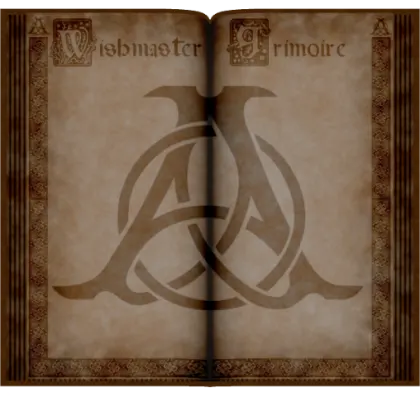
- Index page: the table of contents. It lists every chapter.
- Chapters: click a chapter name to see its spells. Chapters with many spells, like Eldritch, use both sides of the book.
- Back to the index: click any empty part of the page (not a button).
- Minimize: on the Index page, click an empty part of the page. The HUD shrinks to a small icon. Click the icon to open it again.
You can only minimize from the Index page. On any other page, clicking an empty spot takes you back to the Index.
Cast a spell
From the HUD
- Open a chapter and click the spell you want.
- If the spell has variants (different looks or colors), choose one from the menu.
- If the spell needs a target, choose an avatar or object from the menu.
Cast the same spell again
Click and hold a spell's button for about two seconds. The spell casts again, and the first one keeps going. Use this to cast several at once.
At your camera
Many spells (not all) can be aimed with your camera. Choose CAMERA as the target and the spell lands where your camera is pointing.
- Hold Alt and click the spot you want to hit. A short targeting mark confirms it.
- Cast the spell and choose CAMERA.
By chat command
Type the spell's name in chat, with an optional target and variant. Short names work.
/9 bless torley/9 teleport torley shadow/9 elec torley strikeFor elementals, type the element, then the target, then the spell: /9 elec torley strike casts Electricity → Strike.
If you don't give a target, Wishmaster asks you to choose one. The Chat Commands page lists everything you can type.
End your spells
- Click the spell's button on the HUD again, or
- Type
/9 dispelto end all of your active magic in the region.
Spells also end by themselves when:
- 60 seconds have passed,
- you log out or leave the region,
- the spell moves onto a parcel that does not allow scripts or building.
What next?
Spell Library
Every spell, what it does and how to use it. Open the Spell Library.
Dueling & Combat
How spells clash, counter and cancel each other. Learn to duel.
Help & FAQ
Solutions to common problems. Get help.